How to Access Past Events?
Learn how to access past events

Transcript

Created:
June 25, 2023
Last updated:
June 25, 2023
[Campus Hub] >Left Navigation Bar > Events
1. Follow the above-mentioned workflow to land on the Events screen.
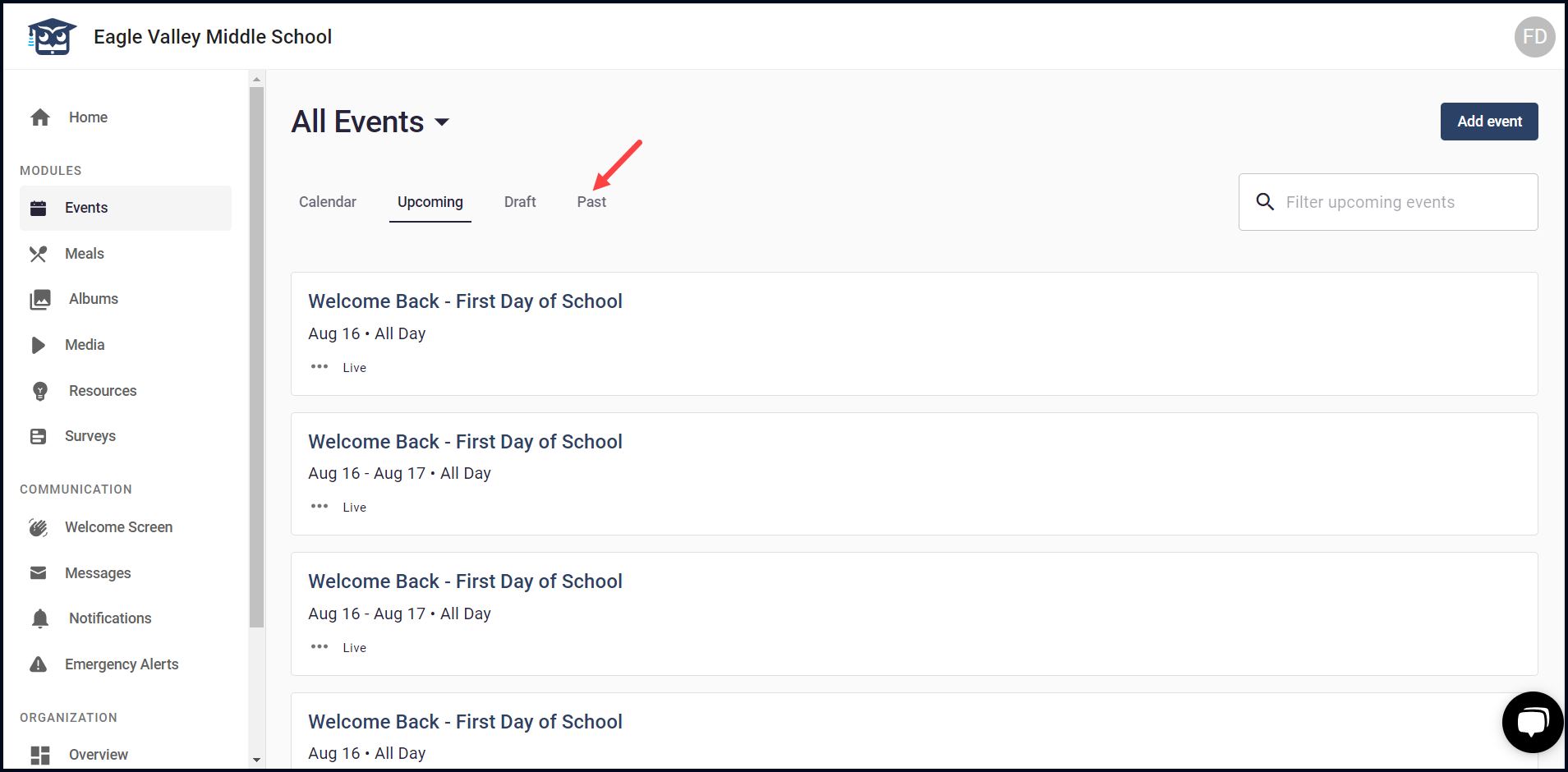
2. From the tabs listed atop, click Past.
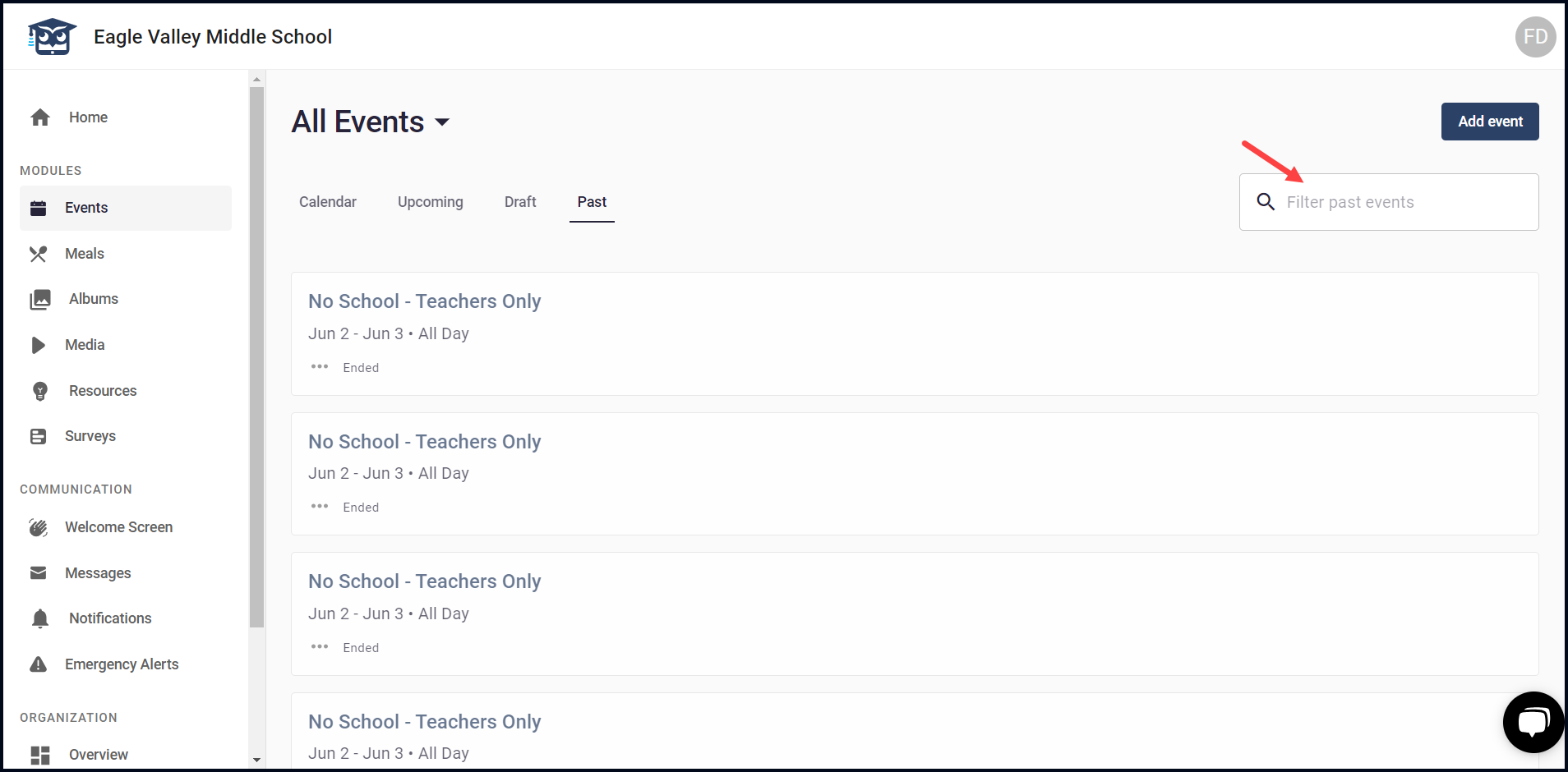
3. To search for a specific past event, type the name of that event in the Filter past events field.
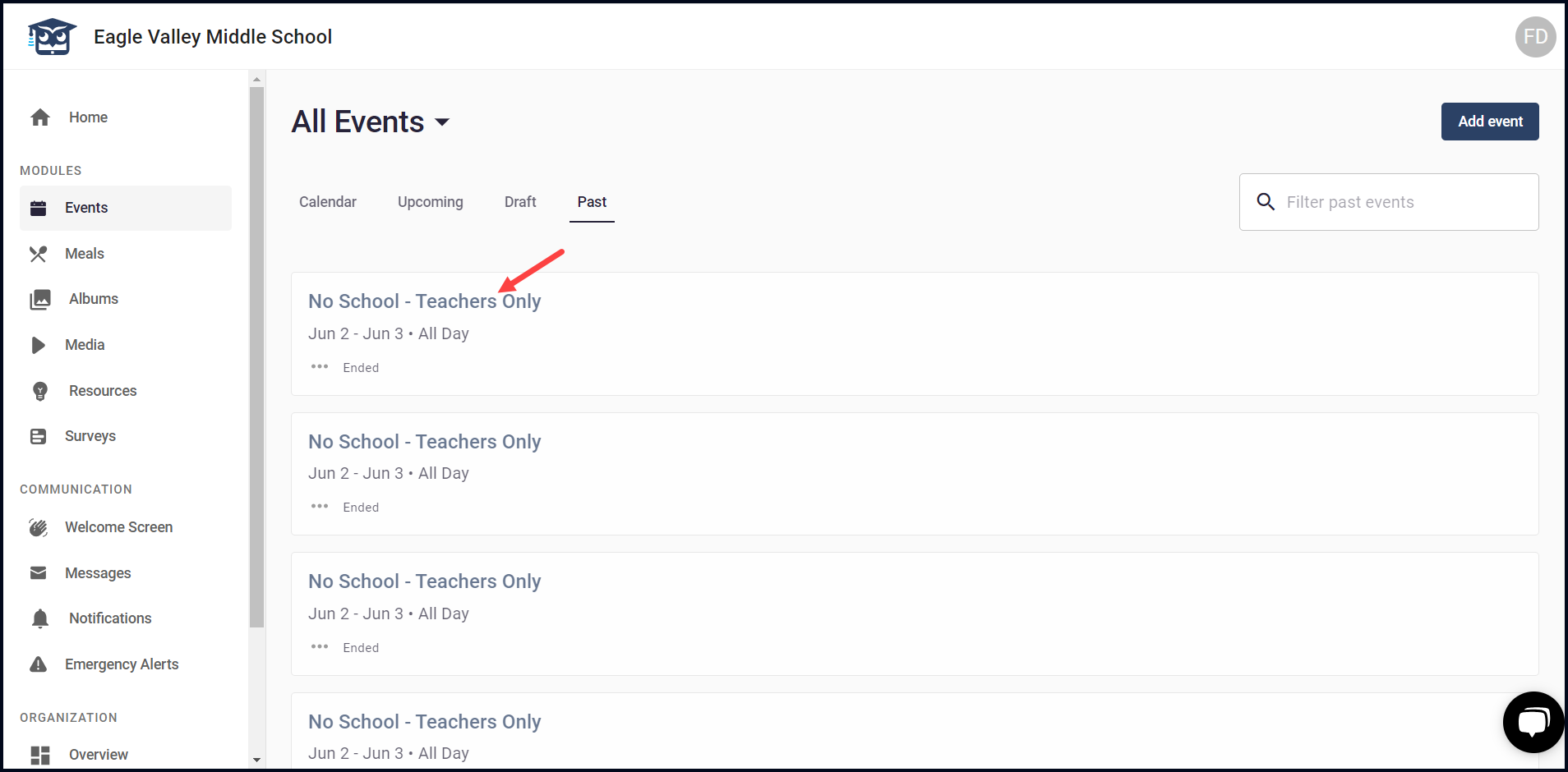
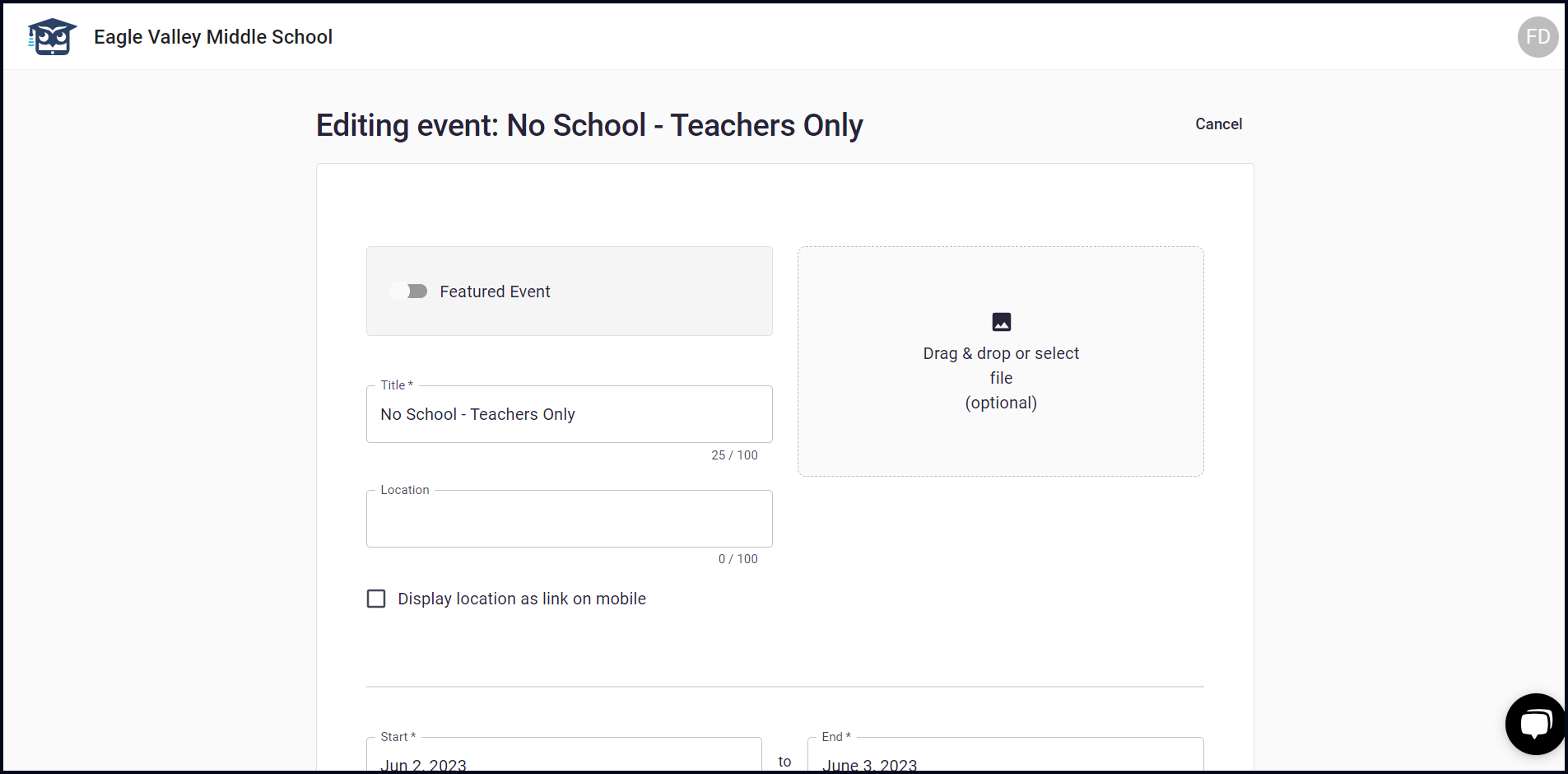
4. Clicking an event name opens it in an editable view for you to make the required changes. Once the changes are made, click the Save button.
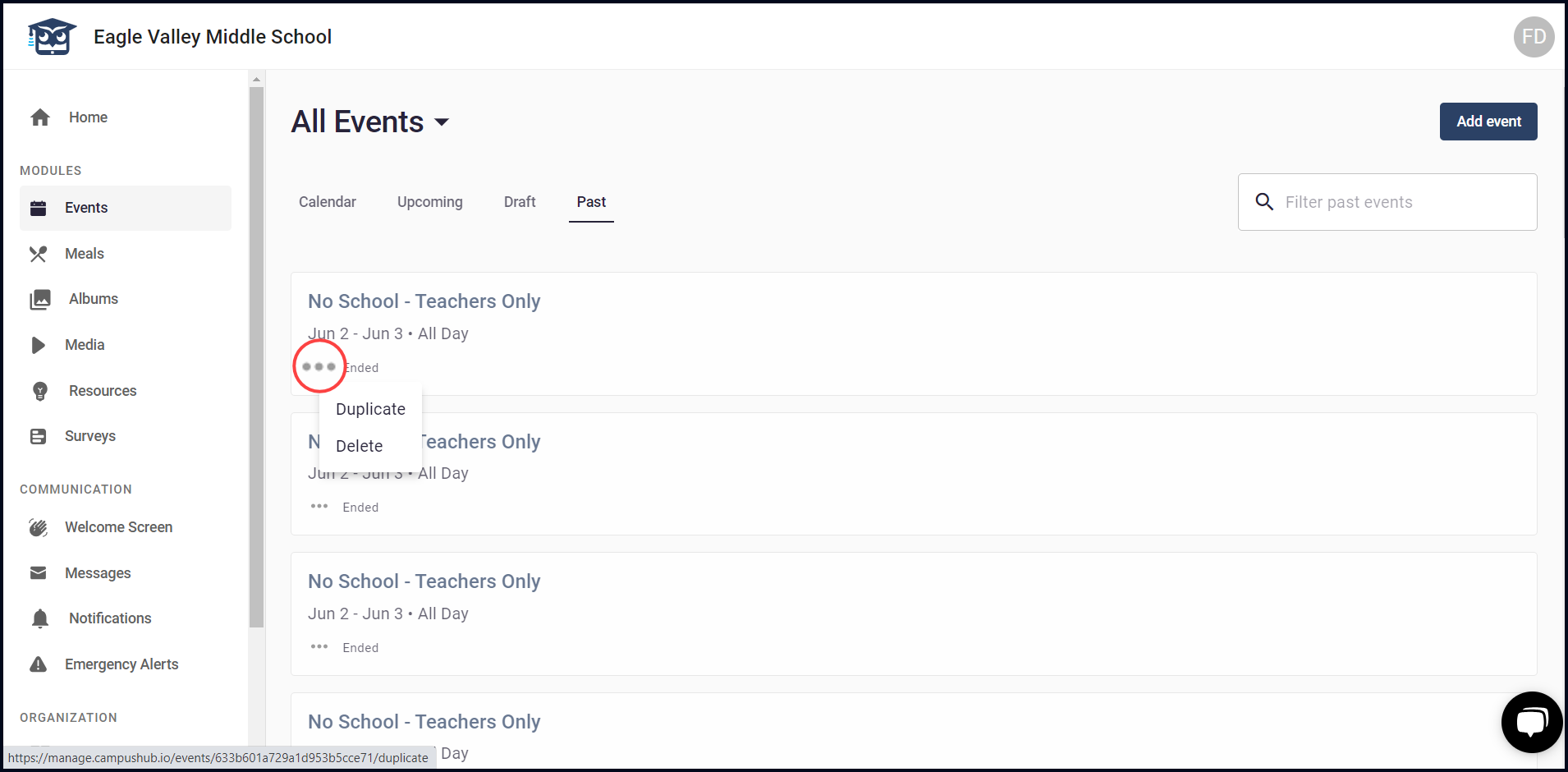
5. Clicking the three-dot icon from an event reveals a menu allowing you to duplicate or delete an event.