How to Access Events?
Learn how to access the Events module

Transcript

Created:
June 25, 2023
Last updated:
June 25, 2023
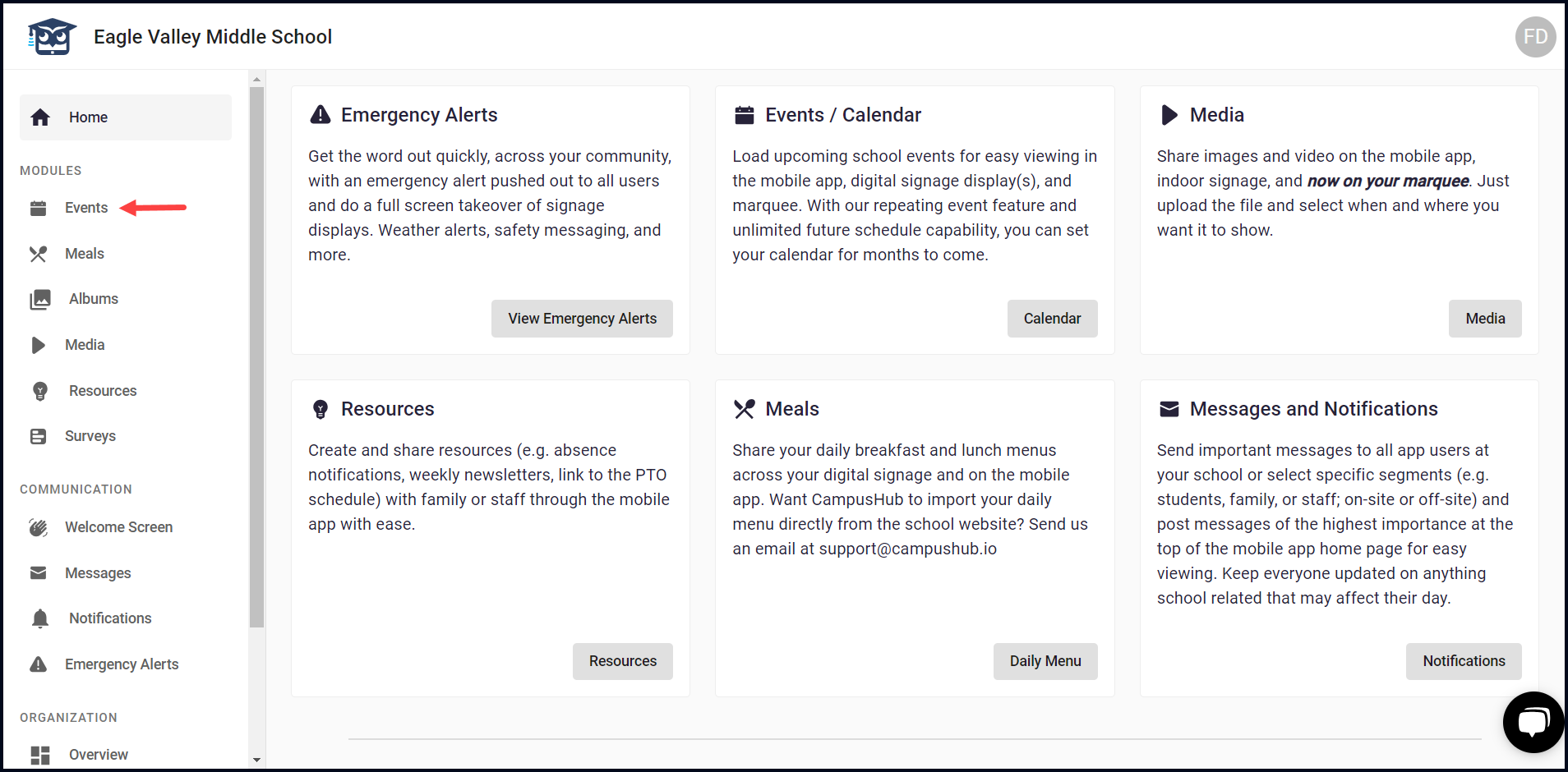
1. Upon successful login, navigate to the left navigation bar.
2. From the list of modules displayed here, click Events. Doing so takes you to the Events screen.
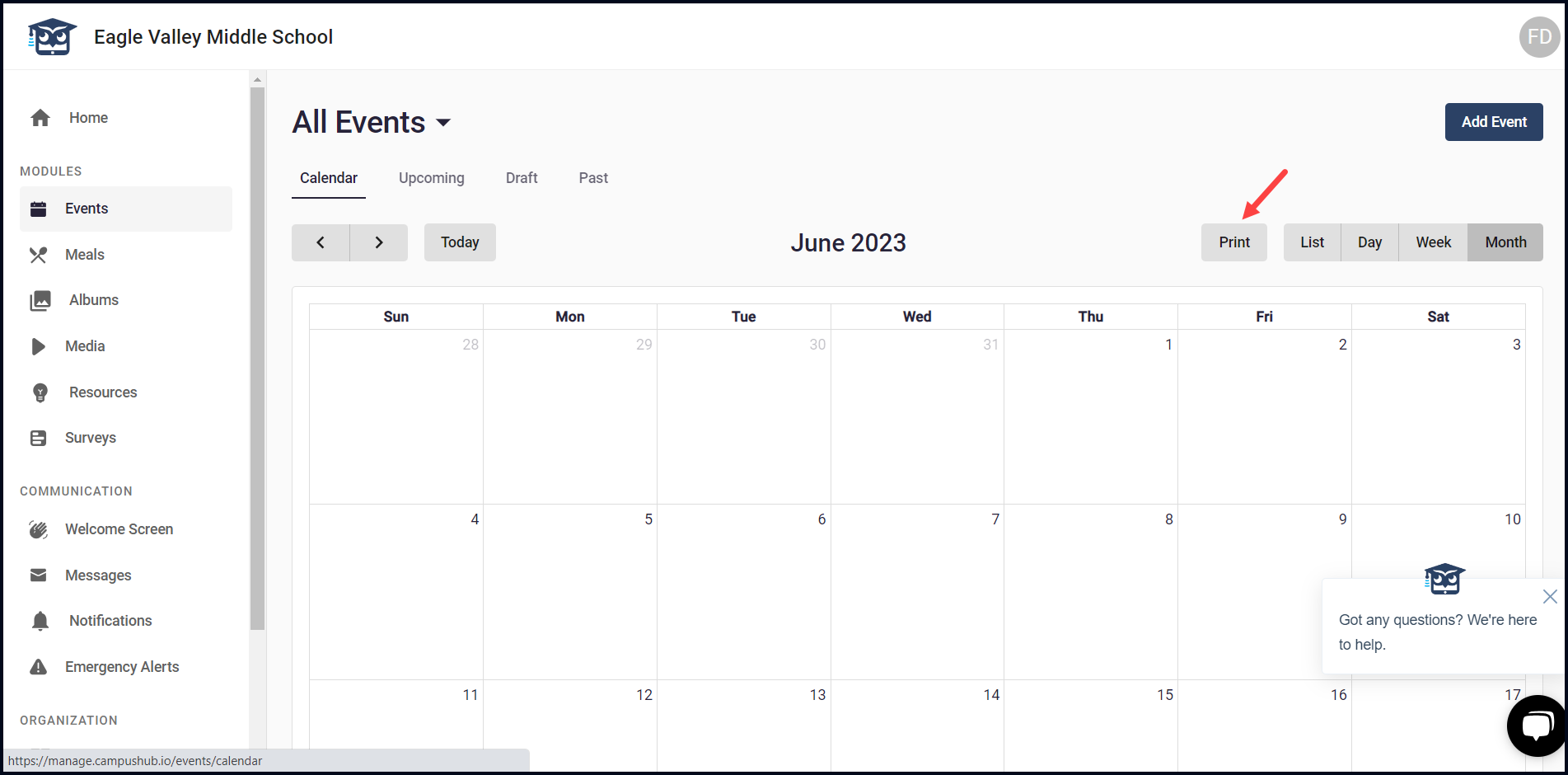
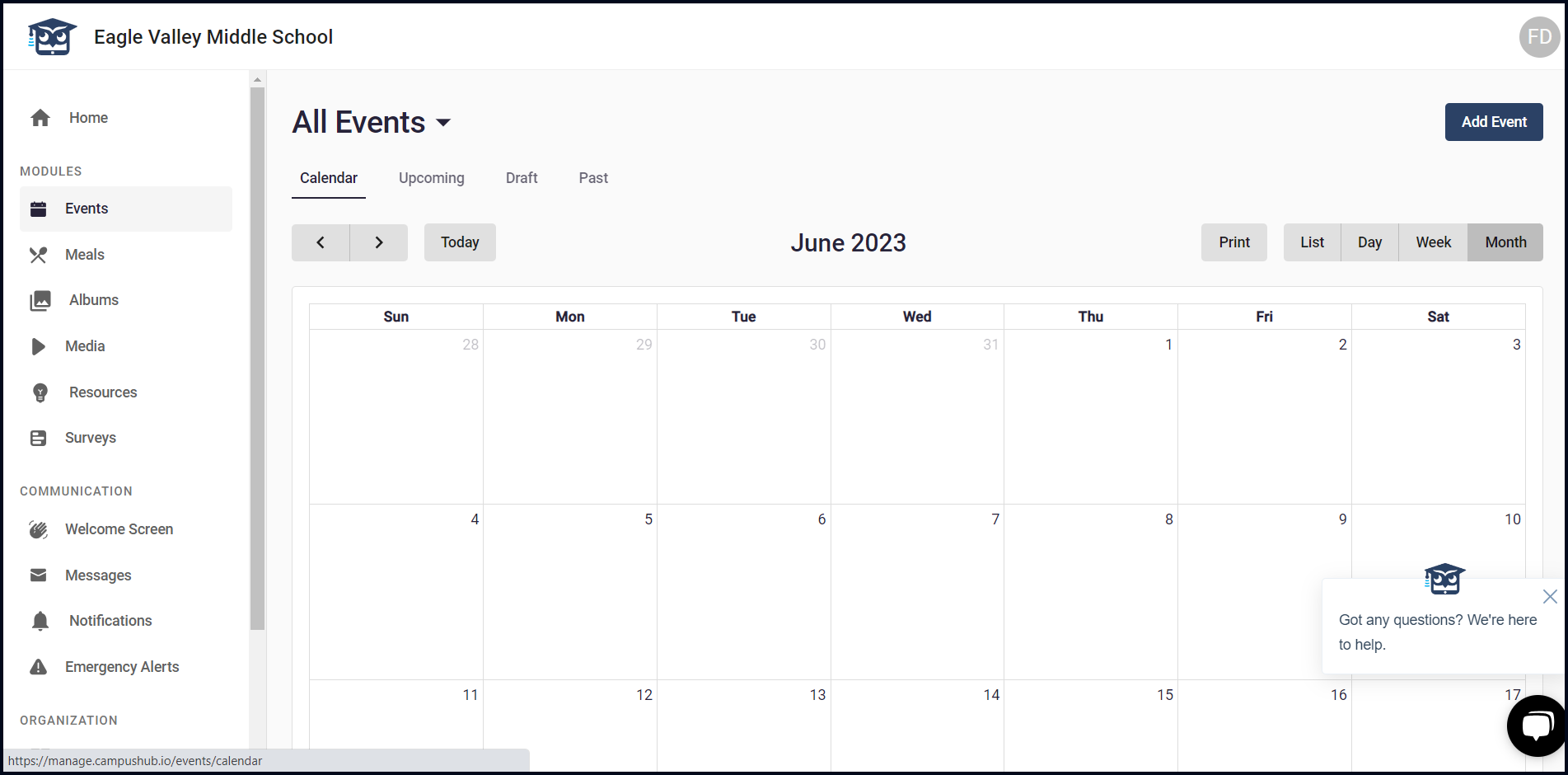
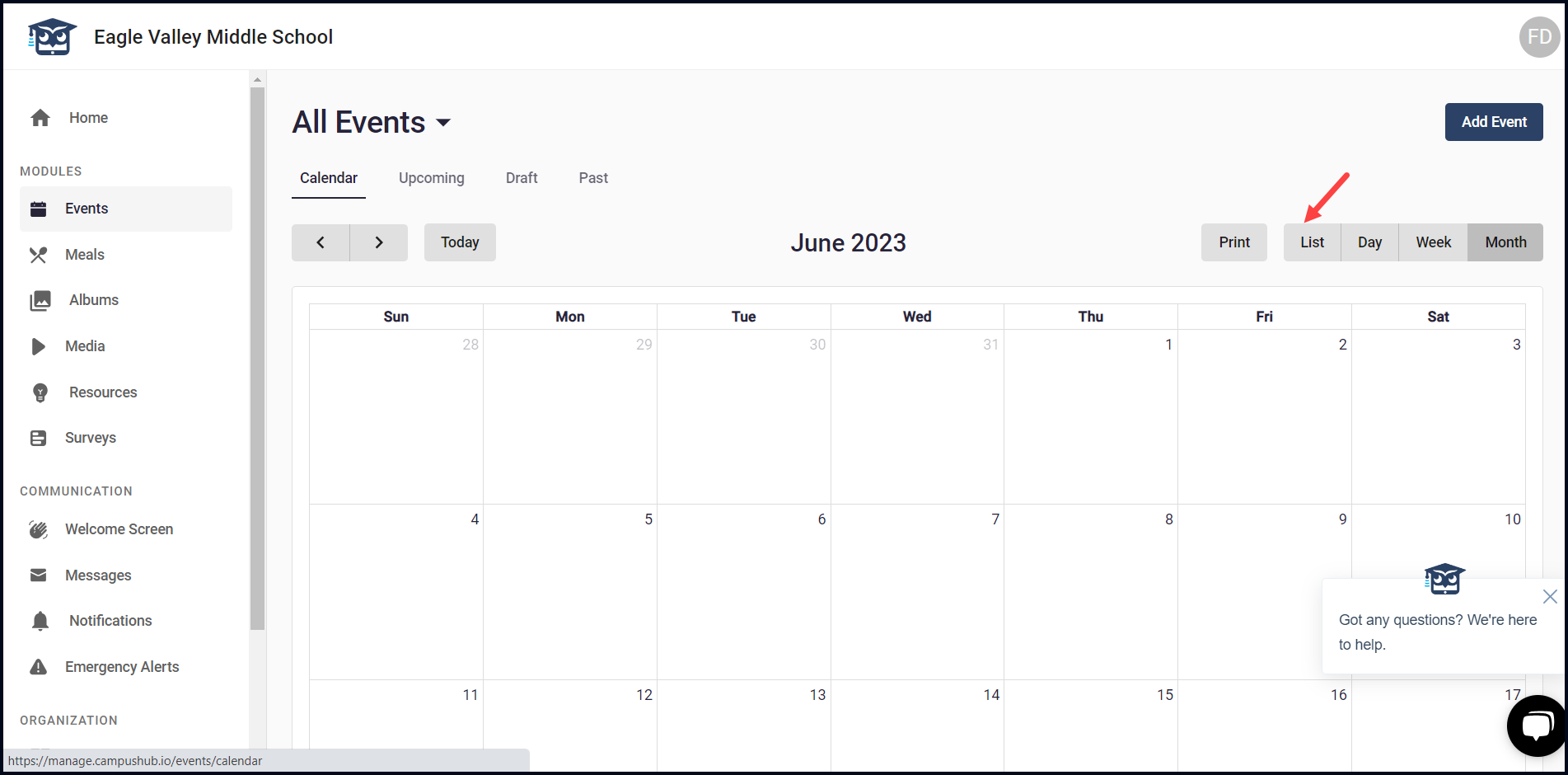
3. Here, all the existing events are displayed in a calendar view.
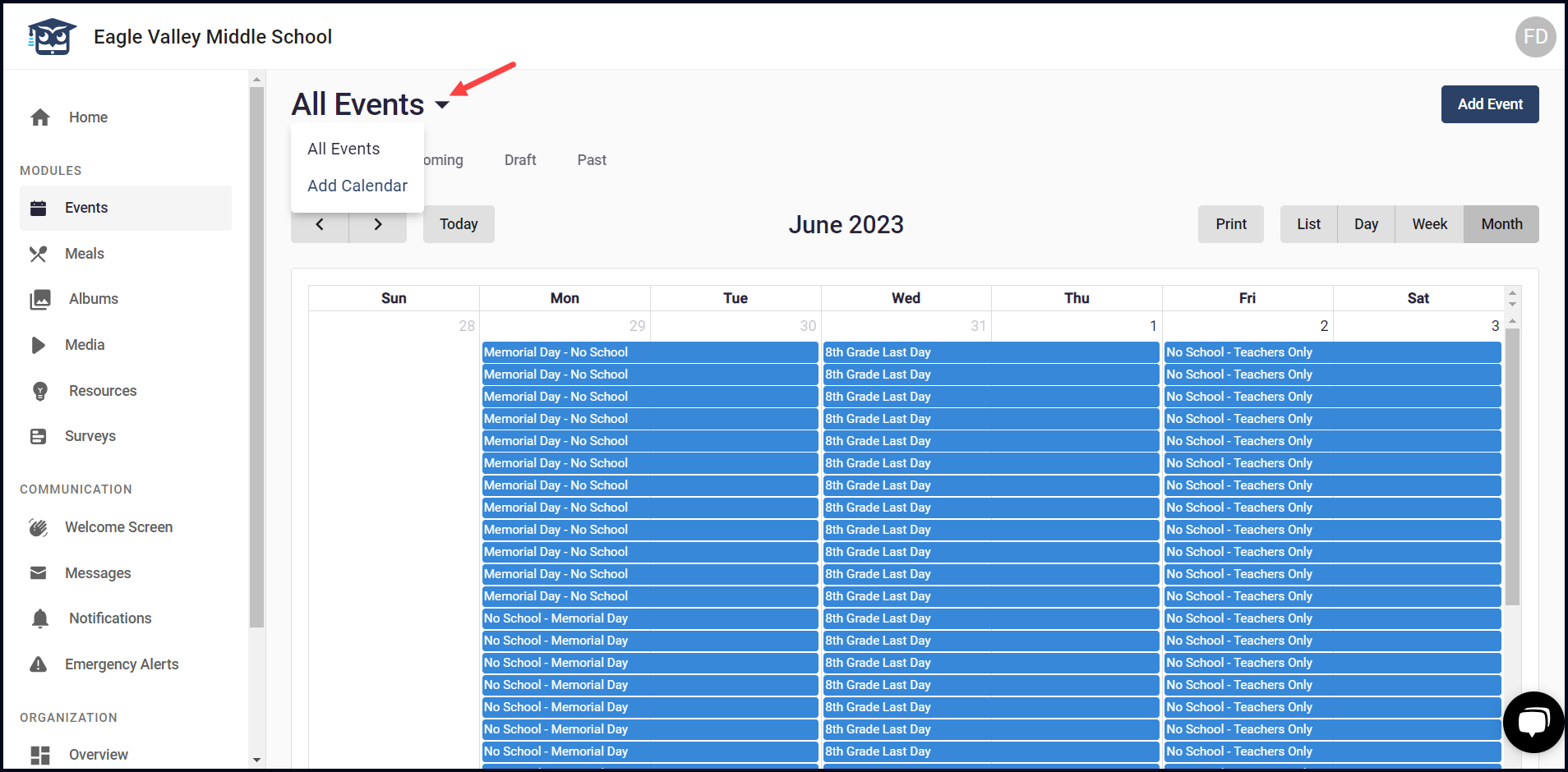
4. You can choose an existing calendar or create a new one from the All Events dropdown.
5. By default, the monthly view of the calendar is displayed.
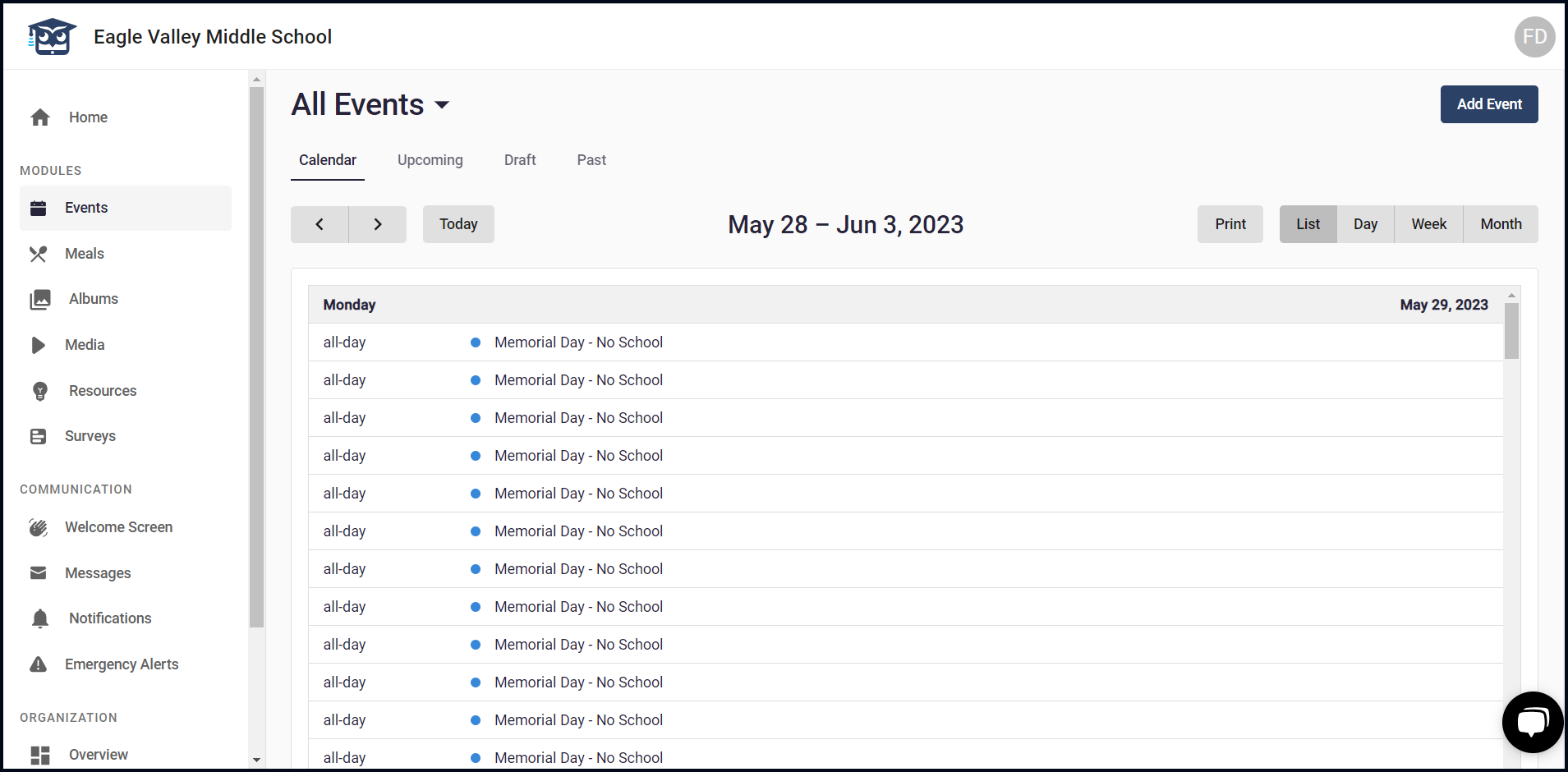
6. To access the list view, click the List button.
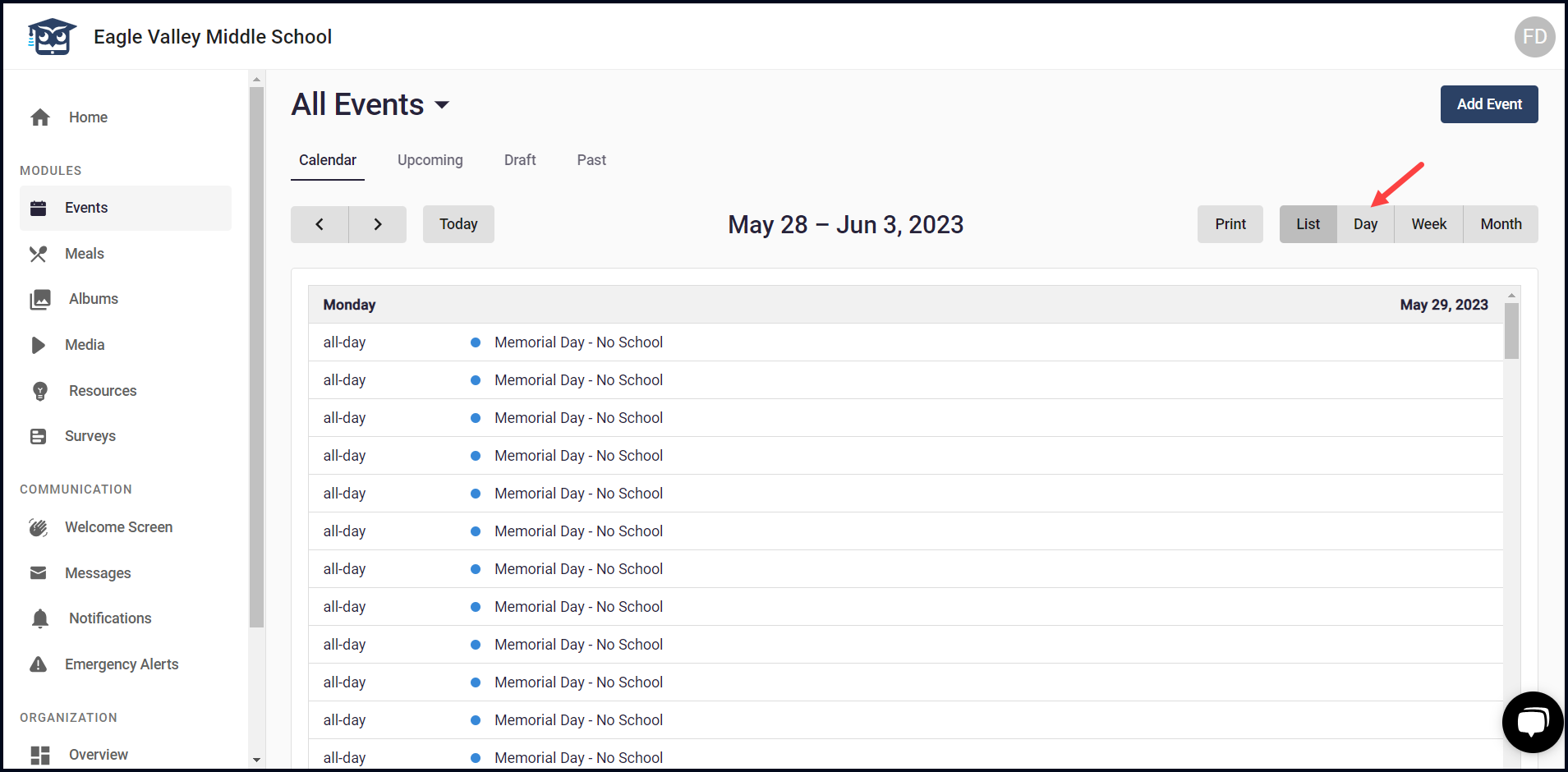
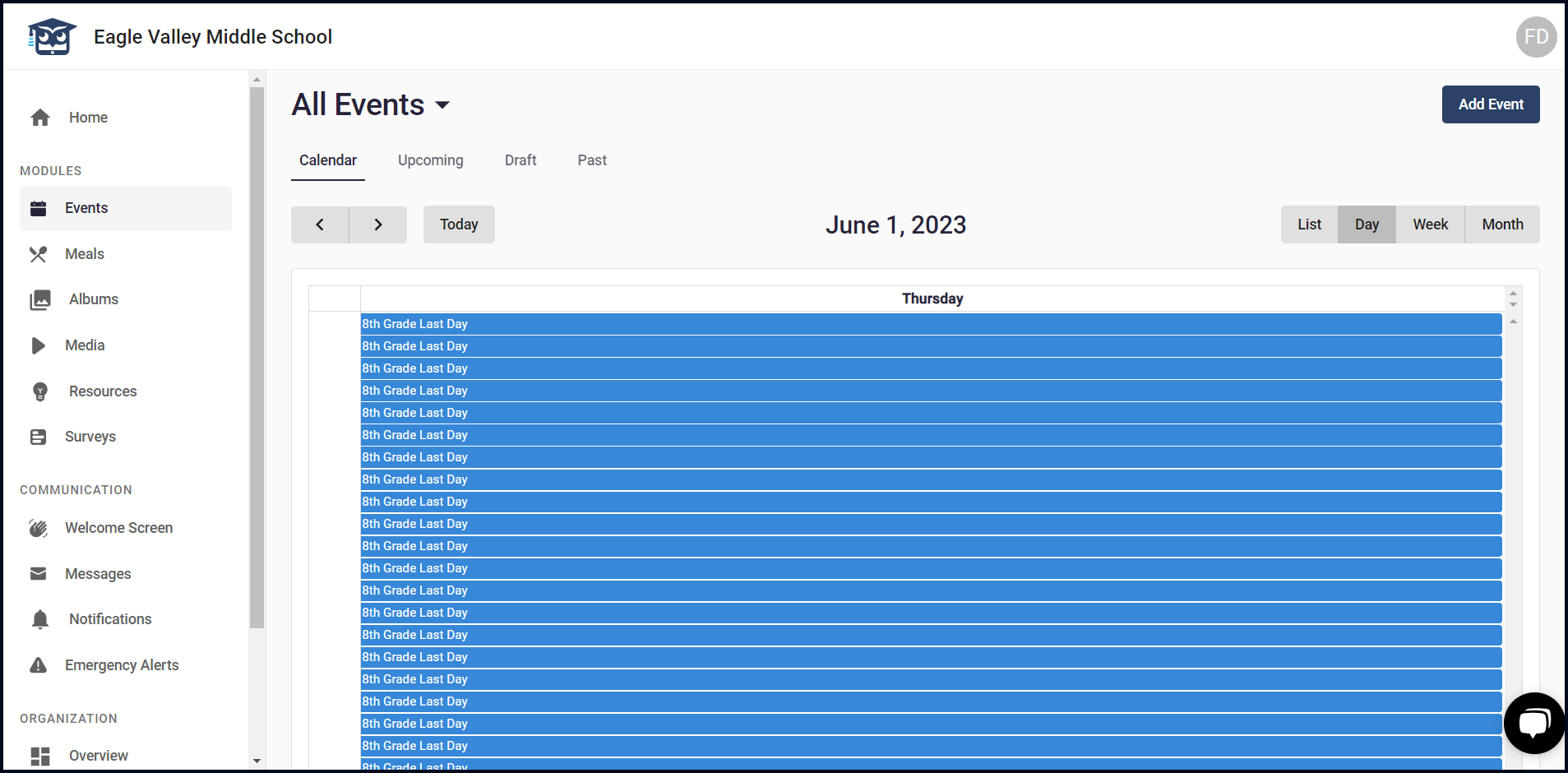
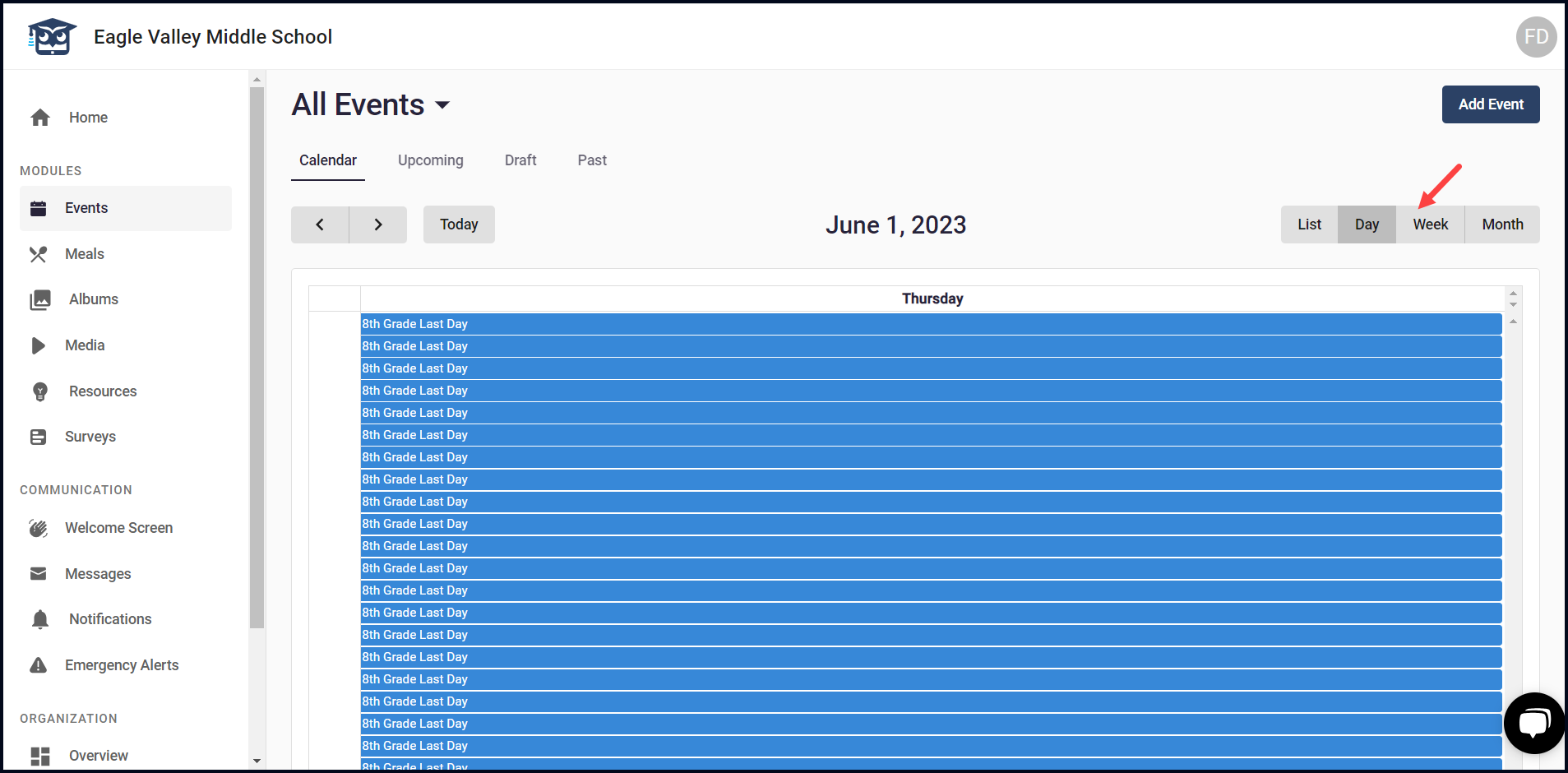
7. To access the daily view, click the Day button.
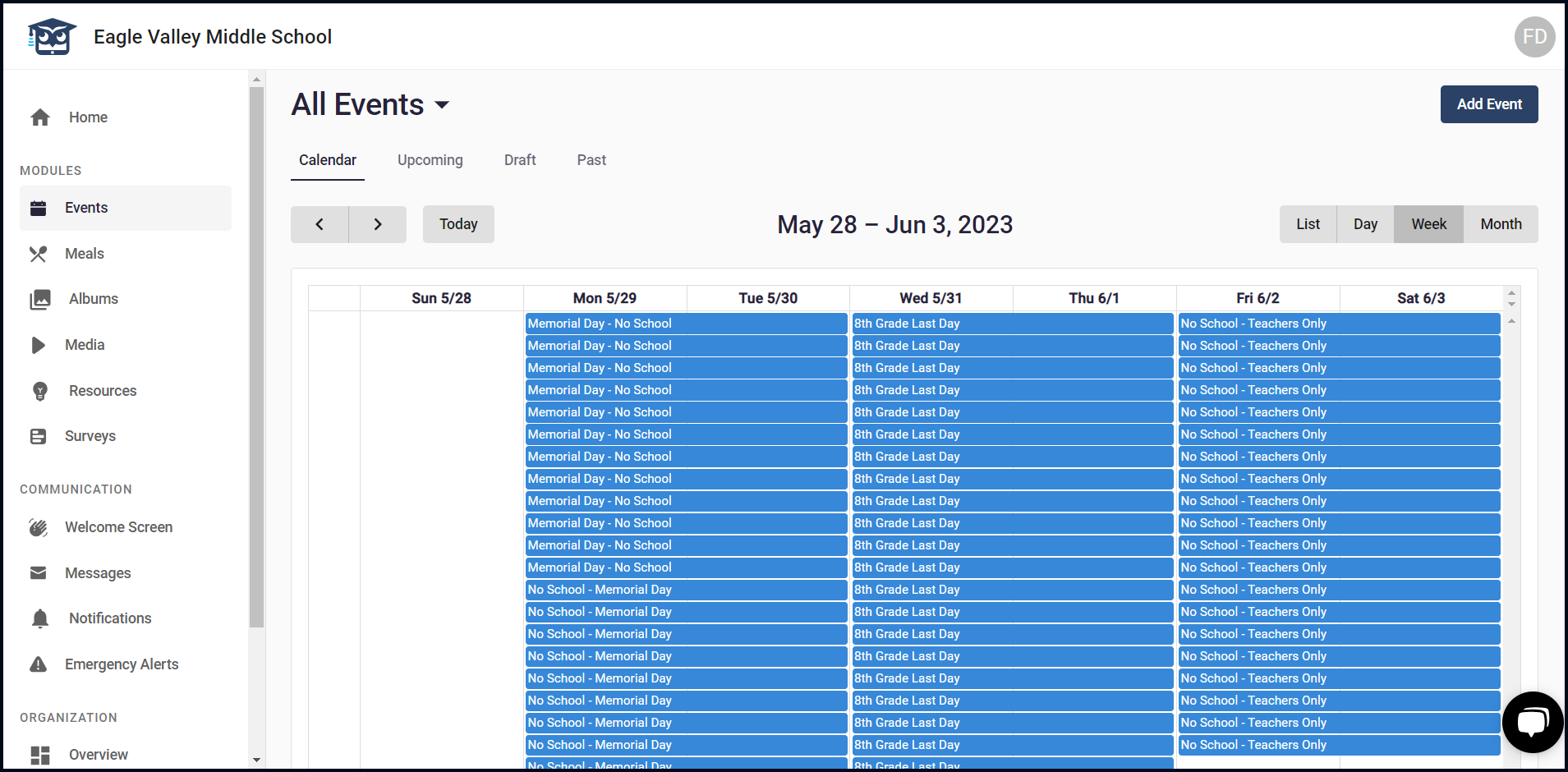
8. To access the weekly view, click the Week button.
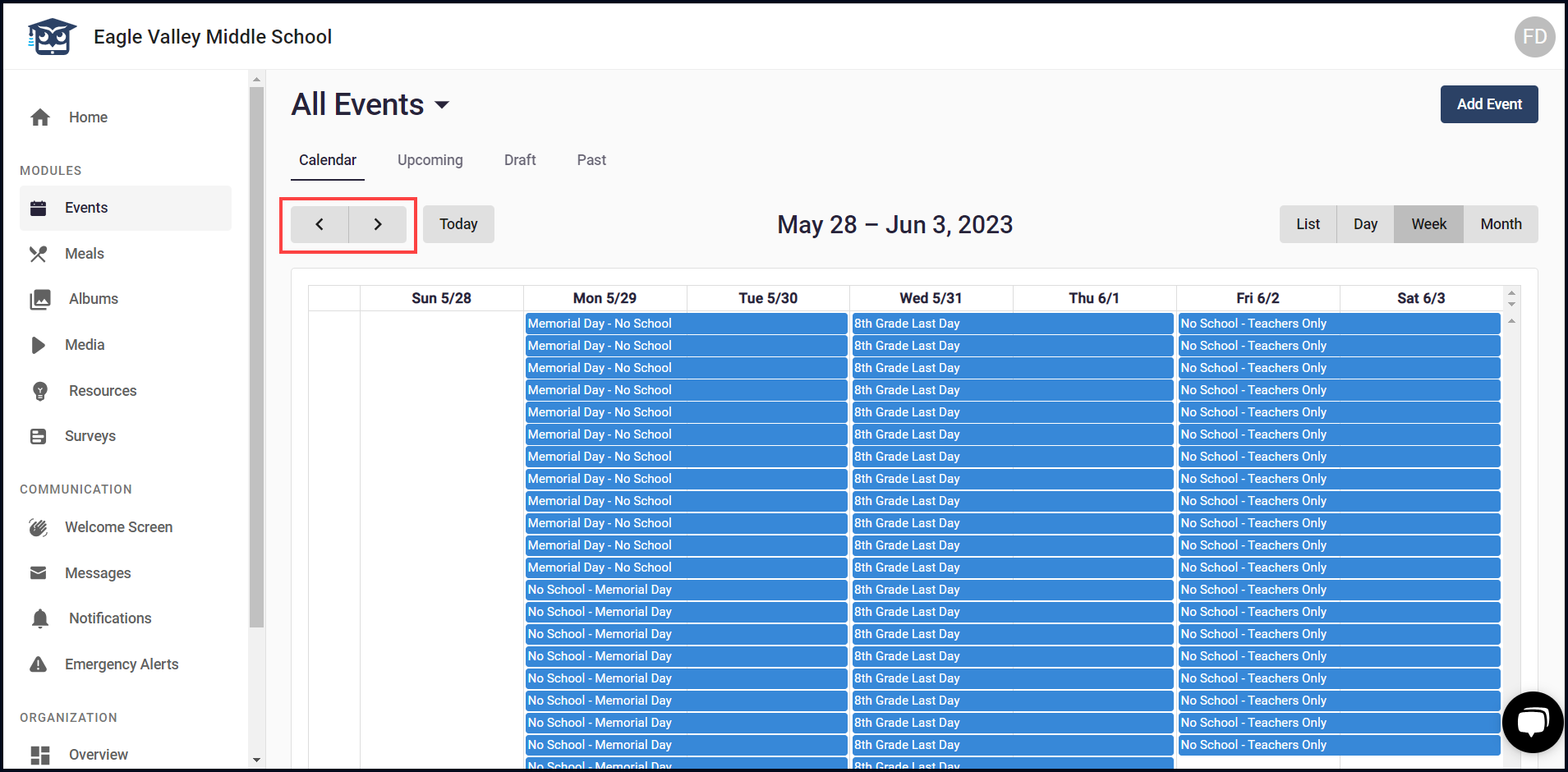
9. You can use the arrow buttons at the top-left corner to get to the next or the previous date.
10. To print the calendar, click the Print button.