How to Add a Survey?
Learn how to add a survey


Campus Hub > Left-hand Menu > Surveys
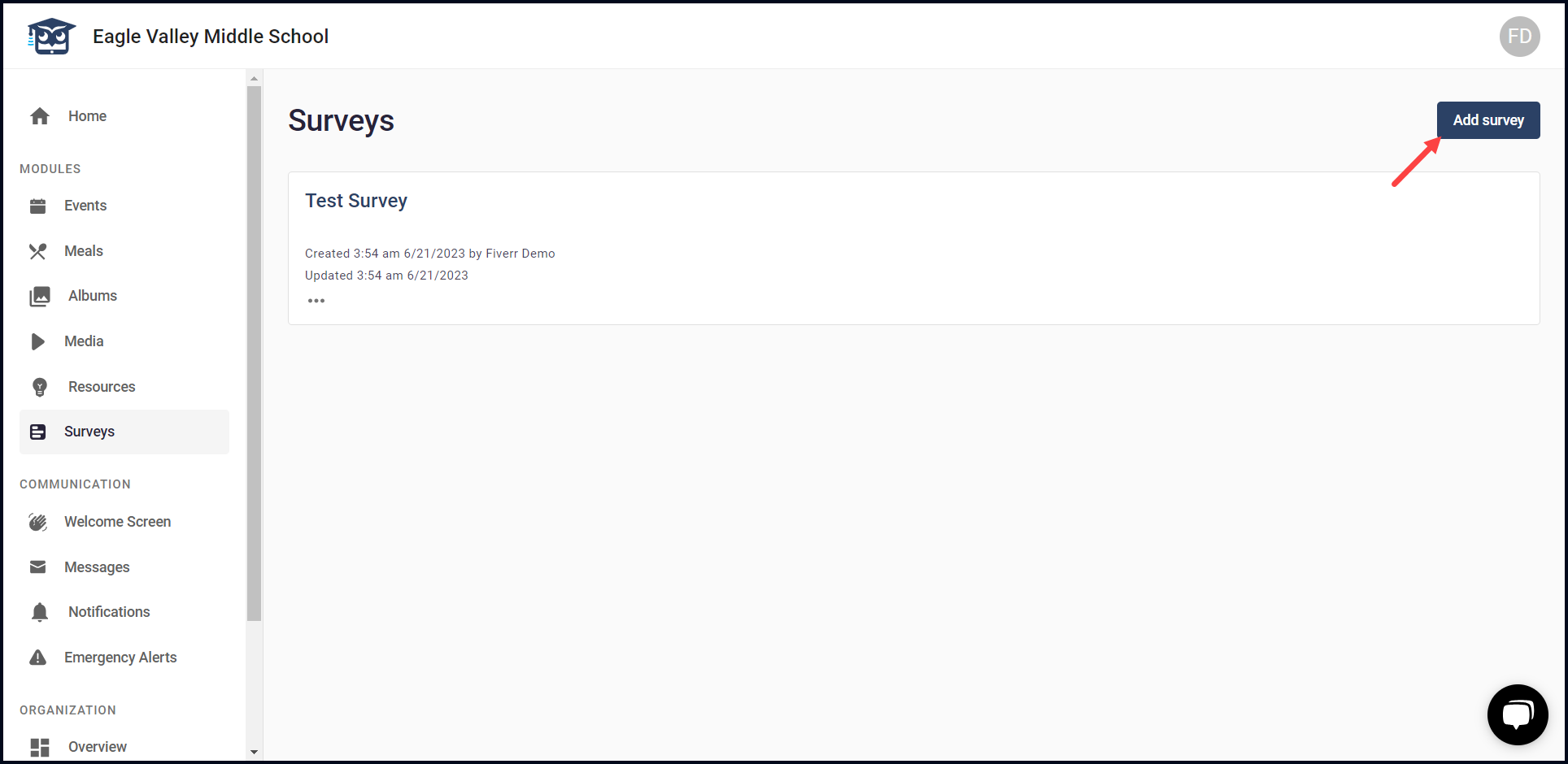
1. Follow the above-mentioned workflow to land on the Surveys screen.
2. To add a survey, click the Add survey button. This opens the Surveys screen.
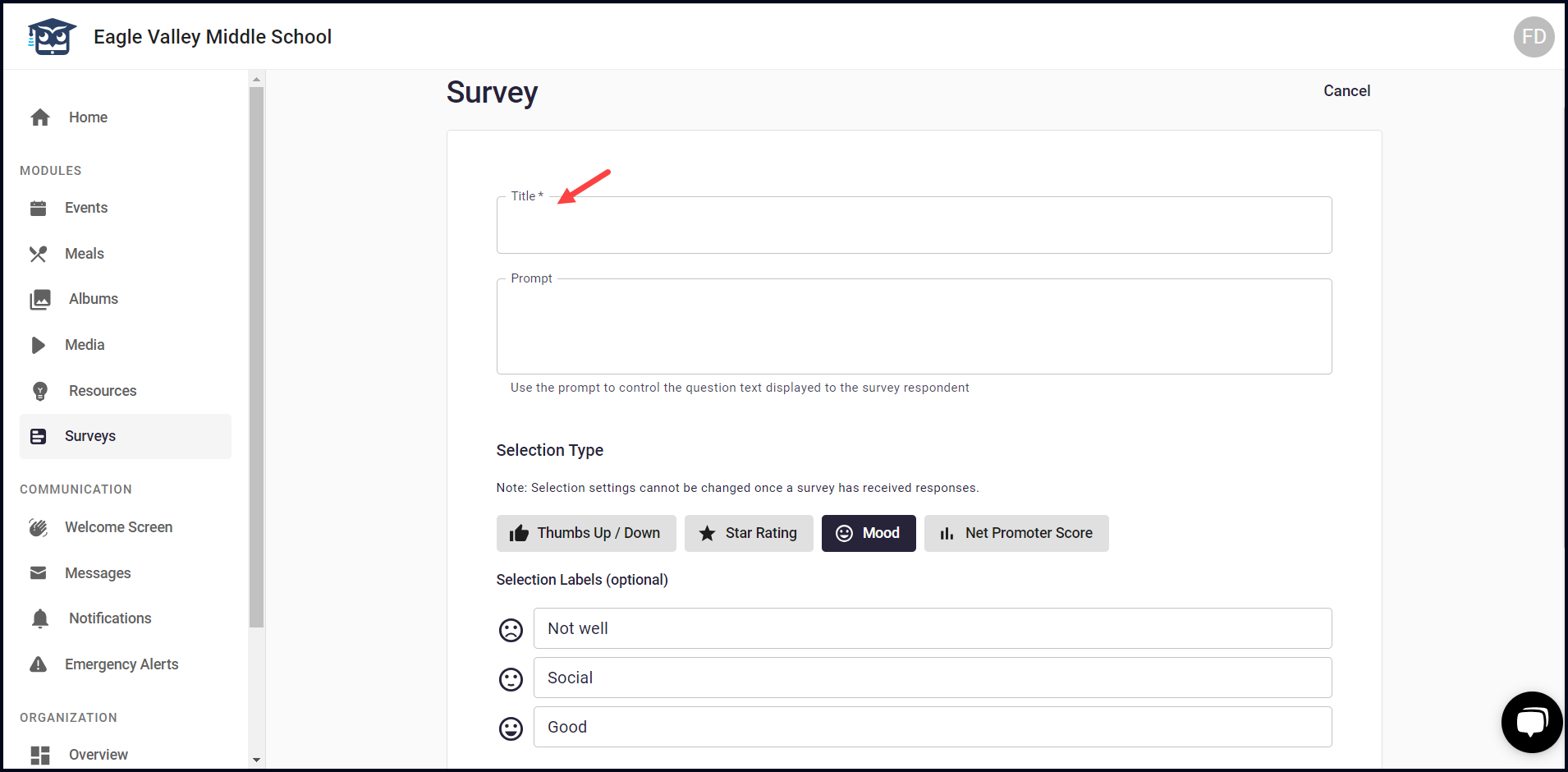
3. Here, enter the survey title in the Title field.
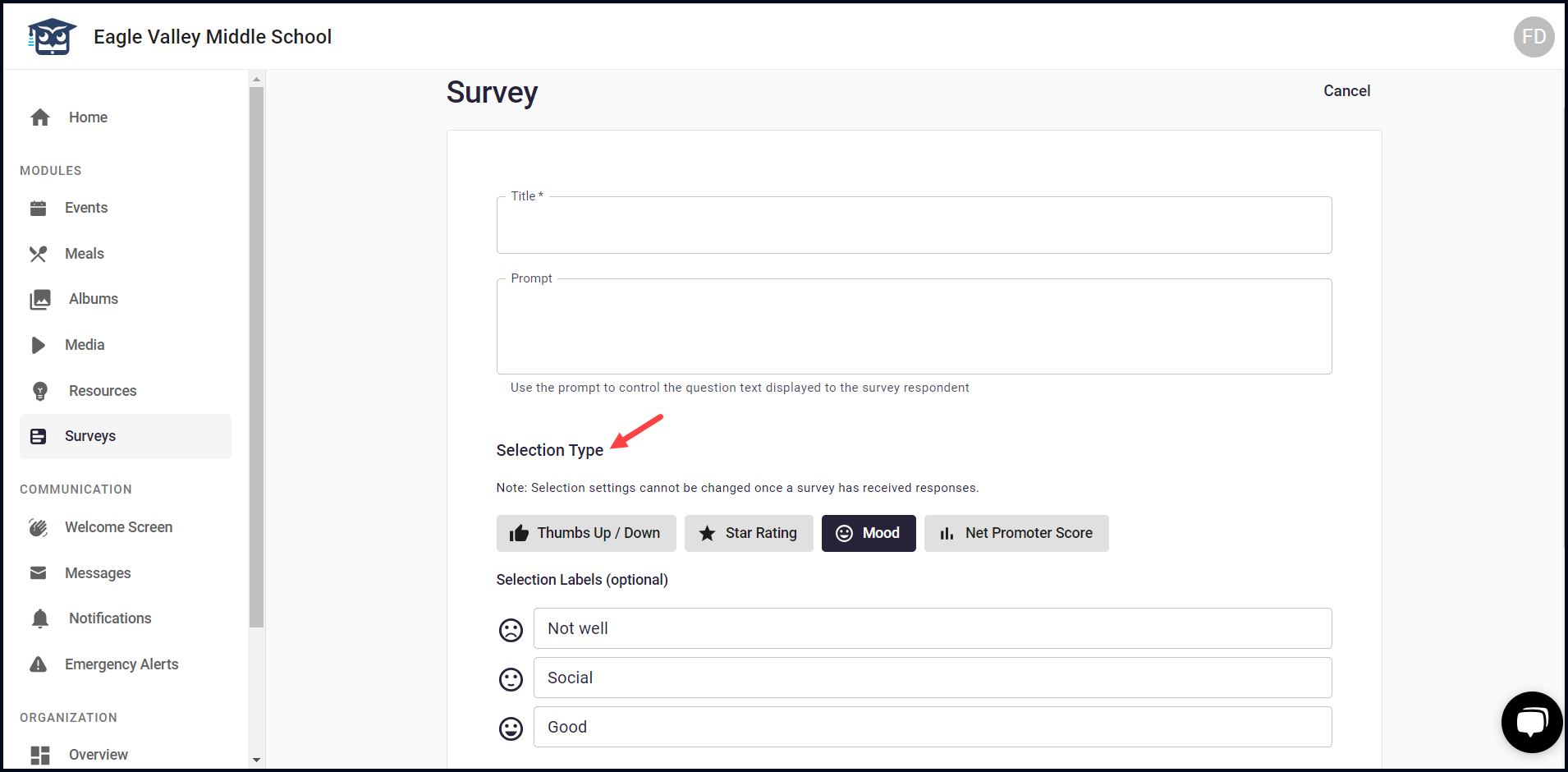
4. Enter the prompt you want to be displayed on the question to the respondent using the Prompt field.

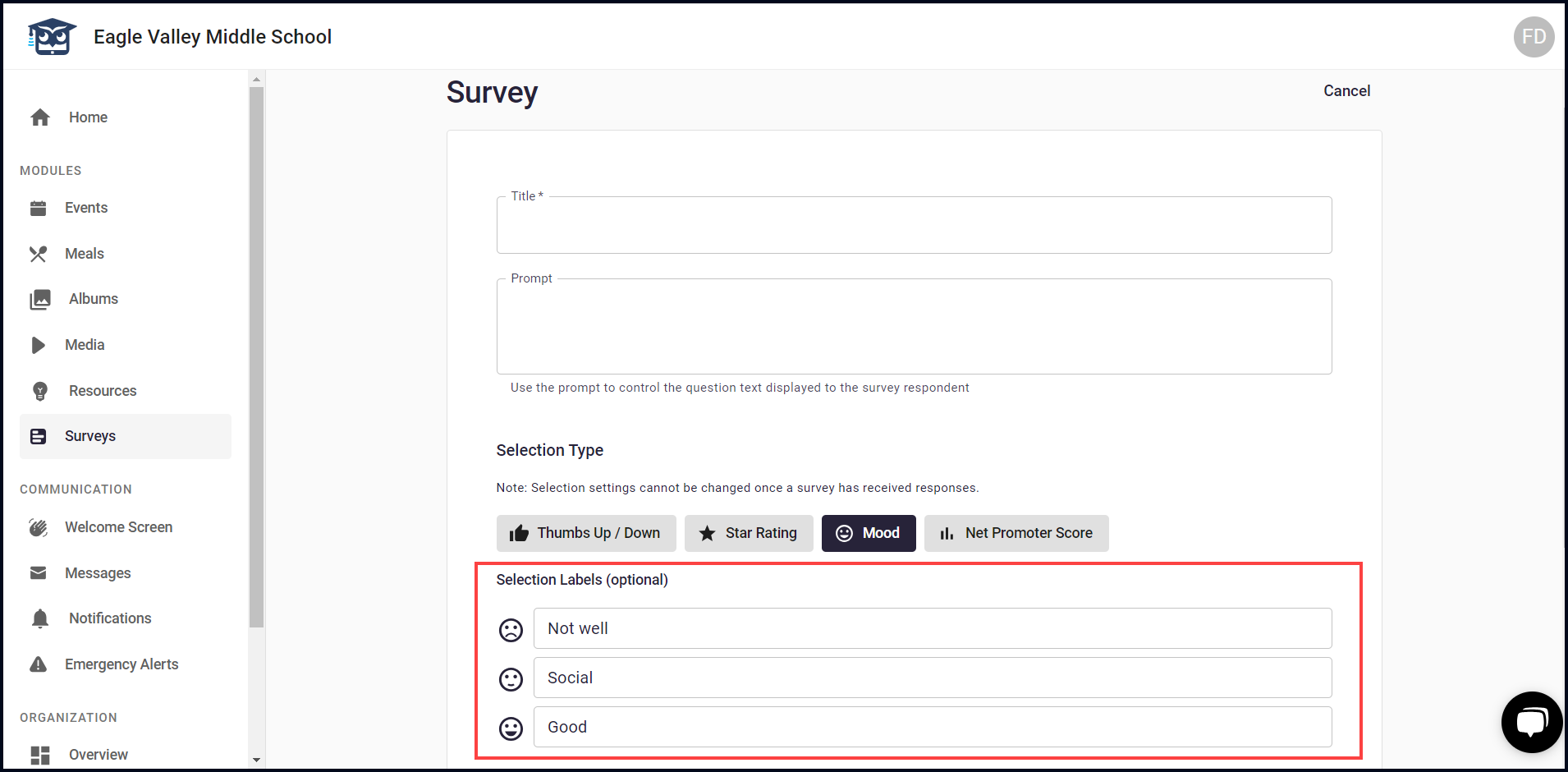
5. Select the type of responses from the Selection Type section.
6. In case you select star rating, you can manually fill the text to be displayed against each rating using the Selection Labels fields.
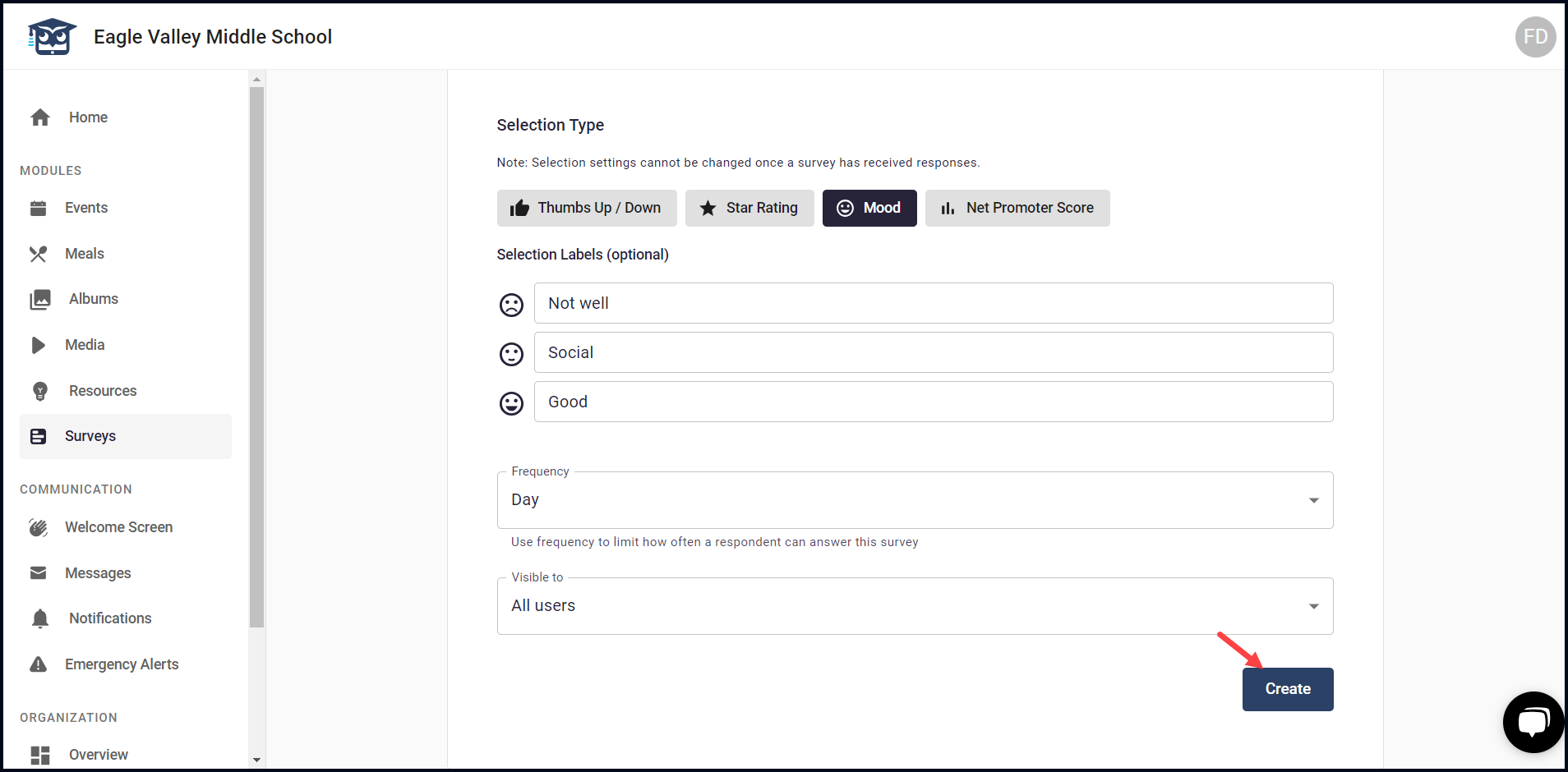
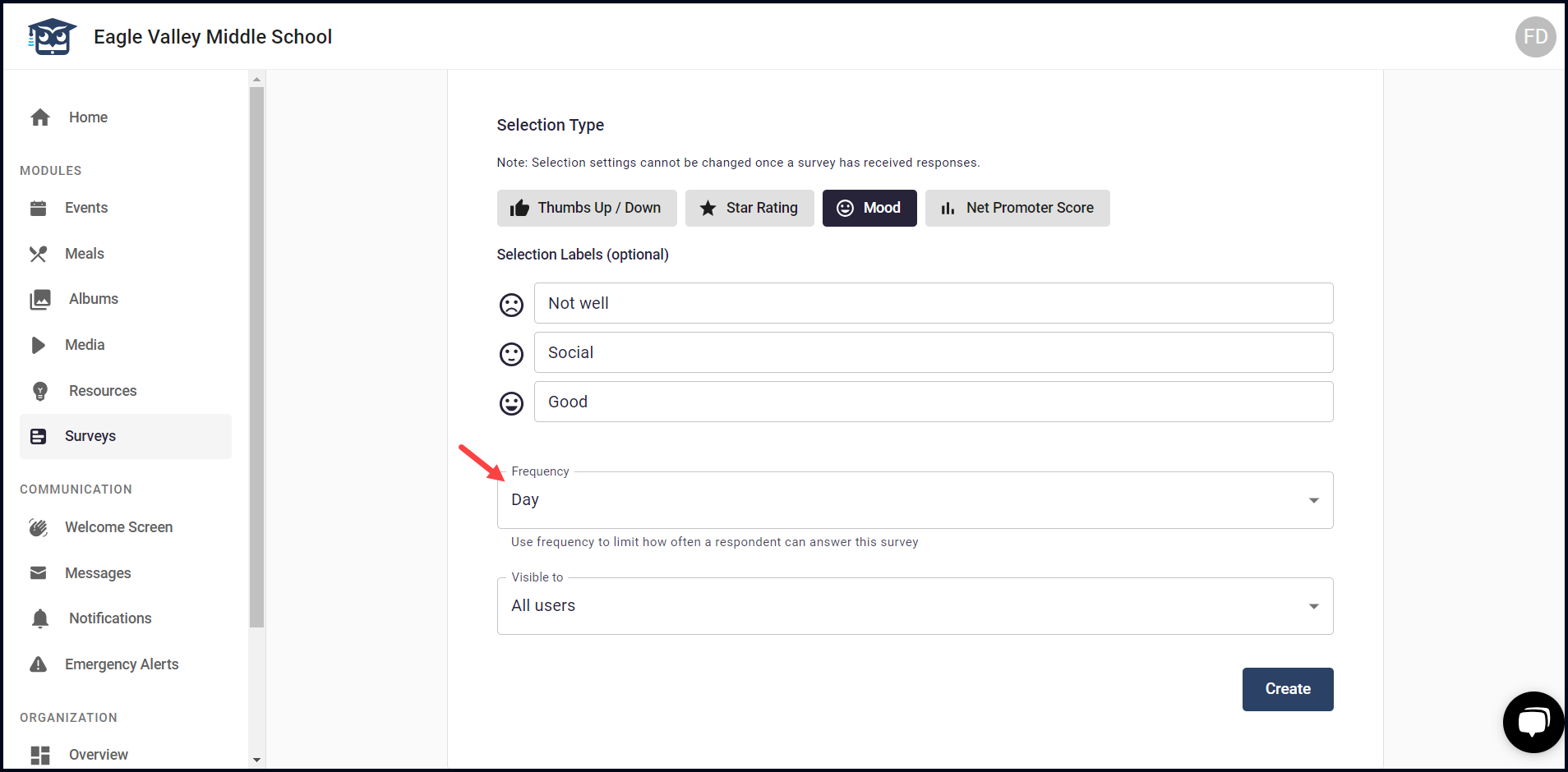
7. Select the frequency of the responses from the Frequency dropdown.
8. Set the visibility of the survey using the Visible To dropdown.
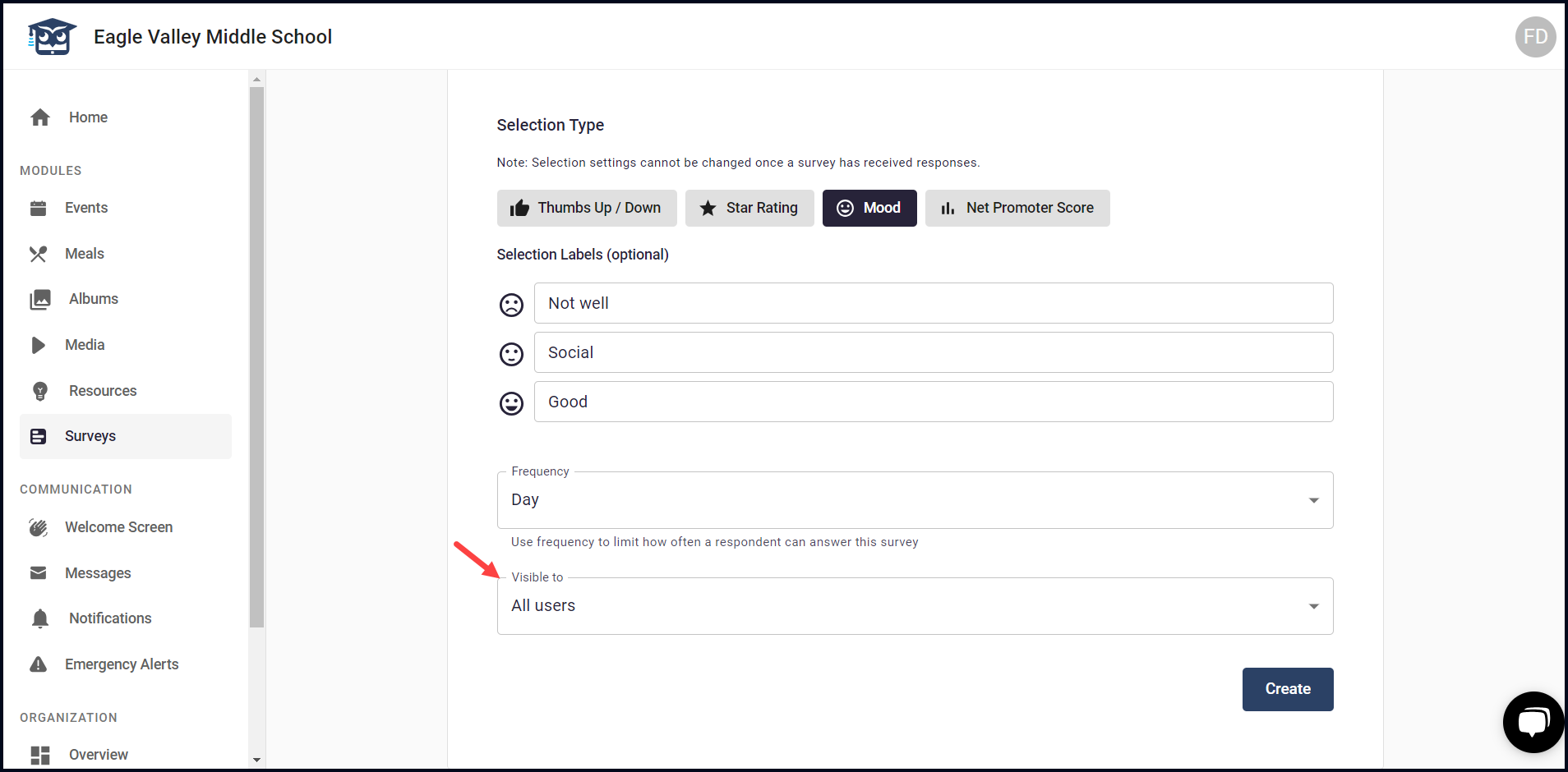
9. Once the required selections are made, click the Create button.